
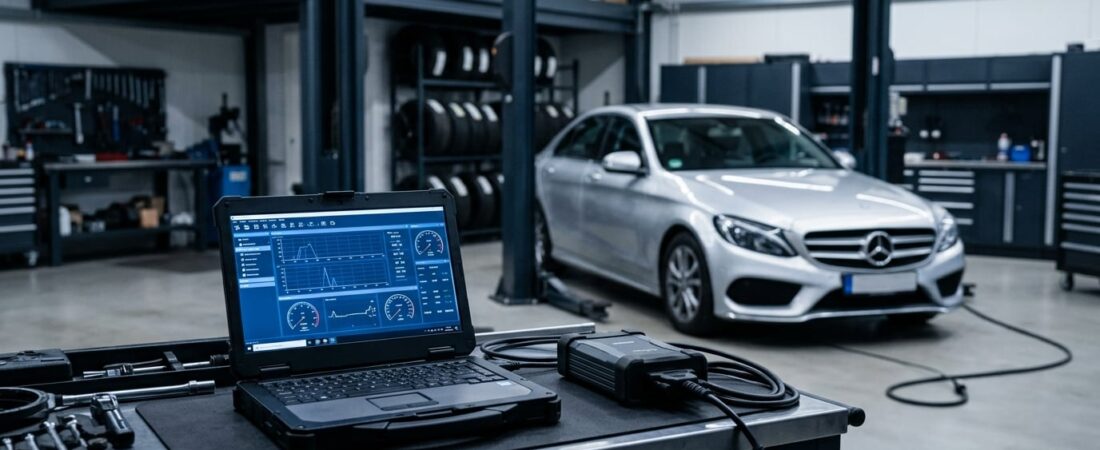
What Is Mercedes Xentry Diagnostic Software?
Mercedes Xentry (also known as Xentry DAS or Star Diagnosis) is the official dealer-level diagnostic software used by Mercedes-Benz workshops worldwide. It allows technicians and advanced enthusiasts to read and clear fault codes, perform actuator tests, code new components, run guided diagnostic routines, and even flash ECU firmware on virtually every Mercedes-Benz model from the 1990s to today.
Unlike generic OBD2 scanners that only access basic engine data, Xentry communicates with every electronic control unit in your Mercedes — including transmission, ABS/ESP, air suspension, COMAND infotainment, keyless-go, and dozens more. If you run an independent Mercedes repair shop or maintain your own MB vehicles, installing Xentry on your own laptop gives you the same diagnostic power as the dealership — at a fraction of the cost.
In this step-by-step guide, you will learn exactly how to install Mercedes Xentry diagnostic software (version 21.6.3), activate it properly, connect your SDConnect interface, and run your very first vehicle scan.
System Requirements Before You Start
Before downloading anything, make sure your computer meets these minimum specifications:
- Operating System: Windows 10 or Windows 11 (64-bit)
- Processor: Intel Core i5 or equivalent (i7 recommended)
- RAM: 8 GB minimum (16 GB recommended for smooth operation)
- Hard Drive: At least 60 GB of free space on a non-system drive (D: or E:)
- USB Port: For connecting the SDConnect C4 or C5 multiplexer
- Internet: Not required during diagnostics, but helpful during setup
Belangrijk: Install Xentry on a secondary partition or drive (not C:) to avoid permission conflicts with Windows system folders. If you only have one drive, create a dedicated folder like D:\Xentry.
Step-by-Step Xentry Installation Guide
Step 1: Disable Antivirus and Windows Defender Real-Time Protection
Xentry’s activation files are frequently flagged as false positives by antivirus software. Before extracting or running any files:
- Open Beveiliging van Windows → Virus & threat protection → Manage settings
- Uitschakelen Realtime bescherming
- Scroll down and turn off Cloud-delivered protection and Automatic sample submission
- If you use third-party antivirus (Norton, Kaspersky, etc.), temporarily disable it completely
You will re-enable these protections after the installation is complete and exclusions are set.
Step 2: Extract the Xentry Installation Files
After downloading the Xentry package from OBD-Soft.com, extract the archive to your target drive using WinRAR or 7-Zip. The password for the archive is provided on the product page or in your order confirmation email. You should see the following folders after extraction:
Xentry_Setup— Main installer filesActivation— Registry keys, DLL patches, and activation toolsDrivers— SDConnect C4/C5 USB and Wi-Fi drivers
Step 3: Run the Xentry Installer
- Navigate to the
Xentry_Setupfolder - Right-click Setup.exe and select Run as administrator
- When prompted for the installation type, choose “US Client / Without Retail Storage”
- Select the target installation directory (your non-C: drive)
- The installation takes 30–90 minutes depending on your hardware — do not interrupt it
- Restart your computer when prompted
During installation, Windows may display several “unknown publisher” warnings. Click Yes or Allow each time to continue.
Step 4: Activate Xentry
This is the most critical step. After the main installation completes and you have rebooted:
- Open het
Activationfolder - Double-click the .reg file to import the registry keys — confirm when prompted
- Copy XentryAPI.dll from the Activation folder to the Xentry installation directory (overwrite the existing file)
- Run the activation utility (if included) and follow the on-screen instructions
- Launch Xentry from the desktop shortcut to verify the activation was successful
If Xentry opens without a “license expired” error, the activation is complete.
Step 5: Add Windows Defender Exclusions
Now re-enable your antivirus protection, but first add exclusions so Windows does not quarantine Xentry files:
- Open Beveiliging van Windows → Virus & threat protection → Manage settings
- Scroll to Exclusions → Add or remove exclusions
- Add a Folder exclusion for your entire Xentry installation directory
- Turn Real-time protection back on
Connecting the SDConnect C4/C5 Interface
Xentry requires a compatible diagnostic interface to communicate with your Mercedes. The two most common options are:
- SDConnect C4 — The classic Star Diagnosis multiplexer, supports both wired USB and Wi-Fi connection
- SDConnect C5 — The newer, more compact version with improved DoIP support for latest models
To connect your interface:
- Install the USB drivers from the
Driversfolder (run the installer as administrator) - Plug the SDConnect into your laptop via USB cable
- Connect the OBD2 cable from the SDConnect to your Mercedes’ 16-pin diagnostic port (usually under the dashboard on the driver’s side)
- Turn the vehicle’s ignition to position 2 (engine off, electronics on)
- Launch Xentry — it should automatically detect the connected interface
Running Your First Vehicle Scan
With everything connected, here is how to perform your first diagnostic session:
- Open Xentry and click “New Diagnosis”
- Enter the vehicle’s VIN (Vehicle Identification Number) or let Xentry read it automatically
- Xentry will identify the exact model, engine, and equipment level
- Select “Quick Test” to scan all control units for stored fault codes
- Review the results — each fault code includes a description, freeze frame data, and suggested repair actions
From here you can clear codes, perform actuator tests, run guided diagnostic routines, and access coding functions for component replacement or feature activation.
Troubleshooting Common Xentry Installation Issues
| Problem | Solution |
|---|---|
| “License Expired” error on launch | Re-import the .reg file and re-copy XentryAPI.dll. Ensure your system date is set correctly. |
| Installer freezes at 90% | Disable all antivirus completely (not just real-time). Some background scanners interfere with large file operations. |
| “No connection to vehicle” | Check USB drivers are installed. Try a different USB port (avoid hubs). Verify ignition is in position 2. |
| SDConnect not detected | Open Device Manager and check for unknown devices. Reinstall drivers from the Drivers folder. |
| Xentry runs very slowly | Ensure you have at least 8 GB RAM. Close unnecessary programs. Install on an SSD for best performance. |
| Windows blocks the .reg file | Right-click the file → Properties → check “Unblock” at the bottom → Apply, then try again. |
Why Choose OBD-Soft.com for Xentry Diagnostic Software?
At OBD-Soft.com, we provide pre-configured Xentry packages that include everything you need in a single download: the installer, activation tools, SDConnect drivers, and clear setup instructions. Our customers benefit from:
- Tested and verified software — Every release is tested before listing
- Dedicated customer support — Installation help via email and chat
- Competitive pricing — Professional diagnostics without the dealership markup
- Compatible hardware bundles — SDConnect C4 and C5 interfaces available in the shop
Whether you are an independent Mercedes workshop looking to offer dealer-level service or an enthusiast maintaining your own vehicle, Xentry from OBD-Soft.com gives you the complete diagnostic toolkit you need.
👉 Browse the full Xentry package and compatible interfaces at OBD-Soft.com
Final Thoughts
Installing Mercedes Xentry diagnostic software may seem complex at first glance, but by following this guide step by step, you can have a fully functional dealer-level diagnostic station running on your own laptop in under two hours. The key steps to remember are: disable antivirus first, install on a non-system drive, activate carefully with the provided tools, and always add folder exclusions before re-enabling protection.
Once Xentry is up and running, you will have access to the same diagnostic capabilities that Mercedes dealerships charge hundreds of euros per hour to use. That is a serious competitive advantage for any workshop — and significant savings for any Mercedes owner.
Ready to get started? Visit OBD-Soft.com to order your Xentry software package today and start diagnosing like a pro.
 English
  German
  Spanish
  Italian
  French
  Hebrew
  Dutch
Dutch  Finnish
  Norwegian
  Swedish
  Polish