
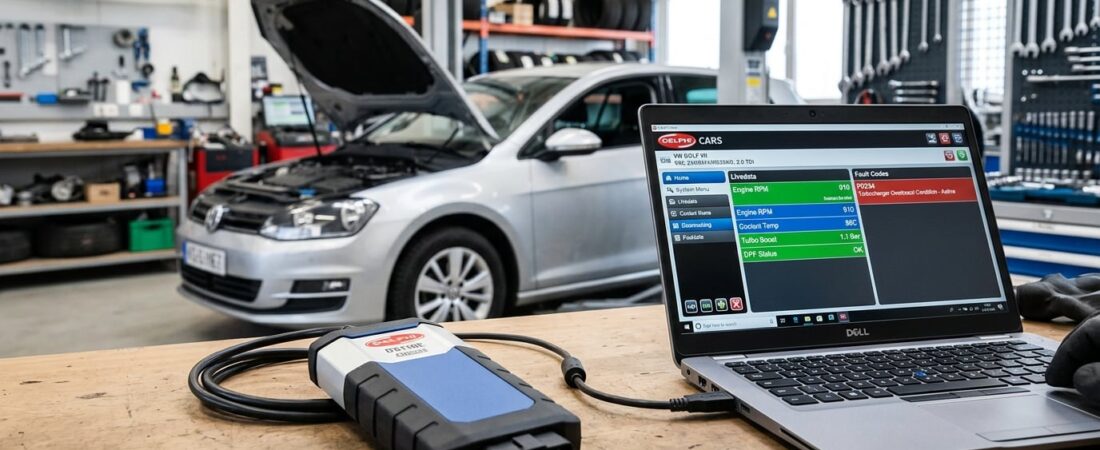
If you’re looking for an affordable, multi-brand diagnostic solution that doesn’t break the bank, Delphi 2021 is one of the best universal car scanner software packages available. Whether you’re a budget-conscious mechanic servicing multiple vehicle brands or a DIY car owner tired of expensive dealership visits, this guide will walk you through the complete Delphi 2021.10 installation and activation process.
What is Delphi Diagnostic Software?
Delphi (often paired with Autocom) is a multi-brand diagnostic platform that supports cars and light commercial vehicles from over 50 manufacturers. Unlike brand-specific tools like Mercedes Xentry or BMW ISTA+, Delphi gives you one software package that works across Audi, BMW, Ford, Toyota, Volkswagen, Renault, Peugeot, and many more.
The Delphi DS150E hardware interface connects to your vehicle’s OBD2 port and communicates with the Delphi 2021 software on your Windows laptop, allowing you to:
- Read and clear fault codes from all vehicle systems
- View live data streams from sensors and ECUs
- Perform special functions: DPF regeneration, oil service reset, electronic parking brake (EPB) release, steering angle sensor (SAS) calibration
- Access manufacturer-specific diagnostics beyond generic OBD2
System Requirements
Before you begin the Delphi 2021 diagnostic software install, make sure your PC meets these minimum requirements:
- Operating System: Windows 7, 8, 10, or 11 (32-bit or 64-bit)
- Processor: Intel Core i3 or equivalent
- RAM: 4 GB minimum (8 GB recommended)
- Hard Drive: 10 GB free space
- USB Port: For connecting the Delphi DS150E interface
- Administrator Rights: Required for installation and activation
Pre-Installation Checklist
To ensure a smooth Delphi car diagnostic tool installation, follow these critical steps first:
1. Disable Real-Time Antivirus Protection
Why this matters: The Delphi activation tools (keygen and patch files) modify the software to bypass license checks. Windows Defender and third-party antivirus programs flag these as potentially unwanted programs (PUPs) or malware. This is a false positive—the files are not harmful when downloaded from trusted sources.
How to do it:
- Windows Defender: Open Windows Security → Virus & threat protection → Manage settings → Turn off Real-time protection (temporarily)
- Third-party AV (Avast, Norton, Kaspersky): Disable shields/protection for 15–30 minutes
2. Extract the Delphi 2021 Files
Download the Delphi 2021.10 installer package from your supplier (OBD-Soft or similar). The file will be a compressed archive (.zip or .rar) protected with a password.
- Right-click the archive → Extract All or use 7-Zip/WinRAR
- Enter the password provided by your supplier
- Extract to a simple path like
C:\Delphi2021(avoid long folder names or special characters)
Step-by-Step Delphi 2021 Installation
Step 1: Run the Installer
Navigate to the extracted folder and locate the setup file:
- Look for
Delphi_2021_10_Setup.exeor similar - Right-click → Run as administrator
- If a User Account Control prompt appears, click Yes
Step 2: Select Your Hardware Type
During installation, you’ll be asked to choose your Delphi DS150E hardware type. This is critical—choose incorrectly, and the software won’t communicate with your interface.
Type 1 (2-PCB Green Board):
- Older DS150E units with two separate circuit boards inside
- Usually has a green PCB visible through the translucent case
- Serial number often starts with
DS150E-2PCB
Type 2 (1-PCB Blue Board):
- Newer single-board design with integrated Bluetooth
- Blue PCB or black board
- Serial number format:
DS150E-1PCBor just model sticker
Not sure? Open your DS150E case (two screws on the back) and check the board color and count. When in doubt, try Type 2 first—most units sold after 2018 are single-board.
Step 3: Complete the Installation
Follow the on-screen prompts:
- Select installation language (English, German, French, etc.)
- Accept the license agreement
- Choose destination folder (default
C:\Program Files\Delphi\Delphi 2021is fine) - Wait for file extraction (takes 5–10 minutes)
- Click Finish but do not launch the software yet
Activating Delphi 2021 with Delfi Keys
Out of the box, Delphi 2021 is locked and will display a “License expired” or “Activation required” error. Here’s how to activate it permanently using the included Delfi Keys keygen.
Step 1: Locate and Run Delfi Keys
In your extracted folder, find the activation tool:
- File name:
DelfiKeys.exe,Delphi_Keygen.exe, or similar - Right-click → Run as administrator
Step 2: Generate Your Activation Code
The Delfi Keys interface is simple:
- Hardware Type: Select the same type (1-PCB or 2-PCB) you chose during installation
- Serial Number: Enter your DS150E serial number (printed on the device label or inside the case)
- Format example:
123456789ABC(no spaces or dashes)
- Format example:
- Expiry Date: Set activation expiration far in the future
- Recommended:
2035-12-31(gives you 9+ years)
- Recommended:
- Click “Generate”
The tool will produce a long activation code. Copy it exactly (Ctrl+C) or write it down carefully—one wrong character will prevent activation.
Step 3: Enter the Code in Delphi Software
Now launch Delphi 2021:
- Desktop shortcut or
C:\Program Files\Delphi\Delphi 2021\Delphi.exe - When the activation window appears, paste your generated code (Ctrl+V)
- Click Activate or OK
- The software should confirm successful activation and open to the main interface
If activation fails, double-check:
- Serial number matches your DS150E exactly
- Hardware type selection matches installation choice
- Windows date/time is correct (activation checks system date)
Connecting the Delphi DS150E Interface
Step 4: Install USB Drivers
Before connecting the interface, install the Delphi USB drivers:
- In the extracted folder, open
Drivers→Delphi_Drivers_Setup.exe - Run as administrator and complete installation
- Restart your computer if prompted
Step 5: Connect the Hardware
- Plug the DS150E into your laptop via USB cable
- Windows should detect new hardware and install drivers automatically
- Check Device Manager (Win+X → Device Manager):
- Expand Ports (COM & LPT)
- Look for Delphi DS150E or USB Serial Port (COMx)
- Note the COM port number (e.g., COM3)
Troubleshooting: If the device shows a yellow warning icon or “Unknown Device”:
- Manually update driver via Device Manager → Browse my computer → point to the Delphi
Driversfolder - Try a different USB port (avoid USB hubs—plug directly into the PC)
Step 6: First Vehicle Scan
Now you’re ready to diagnose a real vehicle:
- Turn on your vehicle’s ignition (engine doesn’t need to run, but ignition must be in “ON” position)
- Plug the DS150E into the vehicle’s OBD2 port (usually under the dashboard, near the steering column)
- In Delphi 2021 software:
- Select Communication → Connection Setup
- Choose DS150E as the interface
- Select the correct COM port
- Click Test Connection—you should see green confirmation
- Go to Vehicle Selection → choose manufacturer, model, year
- Click Start Diagnostics or Read Fault Codes
The software will scan all available ECUs (engine, ABS, airbag, transmission, etc.) and display fault codes with descriptions.
Handling Antivirus Warnings Safely
As mentioned earlier, the Delphi keygen and patched files trigger antivirus false positives. Here’s how to handle this responsibly:
Add Windows Defender Exclusions
Instead of permanently disabling protection:
- Windows Security → Virus & threat protection → Manage settings
- Scroll to Exclusions → Add or remove exclusions
- Add an exclusion → Folder
- Select the entire Delphi installation folder:
C:\Program Files\Delphi\Delphi 2021\- Your extracted activation tools folder (e.g.,
C:\Delphi2021\)
This tells Windows Defender to skip scanning these specific folders, allowing Delphi to run without interference while keeping the rest of your system protected.
Important: Only download Delphi software and activation tools from reputable suppliers like OBD-Soft. Files from untrusted sources may contain actual malware piggybacked onto the legitimate software.
Common Autocom Delphi Installation Issues
“The application failed to start because its side-by-side configuration is incorrect”
Fix: Install Microsoft Visual C++ Redistributable packages:
- Download 2010, 2013, and 2015–2022 versions (both x86 and x64) from microsoft.com
- Install all packages and restart
“No communication with vehicle”
Fix:
- Verify ignition is ON (not ACC position)
- Check OBD2 port fuse (usually 10A—check owner’s manual)
- Ensure COM port is correctly selected in Connection Setup
- Try selecting a different communication protocol (CAN, K-Line, ISO9141)
Software crashes on startup
Fix:
- Run as administrator
- Disable Windows compatibility mode (right-click → Properties → Compatibility → uncheck all boxes)
- Reinstall with antivirus completely disabled
Why Choose Delphi 2021?
If you’re weighing Delphi against other diagnostic solutions, here’s what makes it a standout choice for multi-brand workshops:
Advantages
- Universal coverage: One tool for 50+ car brands (compare to buying separate OEM software for each manufacturer)
- Budget-friendly: Significantly cheaper than dealer-level tools
- Special functions: DPF, EPB, SAS, oil reset, battery registration, injector coding
- User-friendly interface: Easier learning curve than professional OEM platforms
- Regular updates: Community-maintained versions keep vehicle coverage current
Limitations
- No programming/coding: Delphi reads codes and performs resets, but can’t code new modules or reprogram ECUs (for that, you need OEM tools like Xentry or ISTA+)
- Depth on newer cars: Works well for diagnostics, but lacks the deep integration of manufacturer-specific software for brand-new models
- Support: No official helpdesk—you rely on forums and supplier support
Next Steps: Start Diagnosing
With Delphi 2021 successfully installed and activated, you now have a powerful universal OBD scanner software at your fingertips. Here’s what to explore next:
- Run a full system scan on your own vehicle to see all supported modules
- Bookmark special functions you use frequently (DPF regen, EPB, etc.)
- Join Delphi user forums for tips, vehicle-specific procedures, and troubleshooting
- Keep backups of your activation code and installer—store on USB or cloud
For brand-specific deep dives, consider pairing Delphi with an OEM tool:
- BMW owners: BMW ISTA+ for coding and programming
- Mercedes specialists: Mercedes Xentry for Star Diagnosis-level access
- Multi-brand shops: Keep Delphi as your daily driver, OEM tools for advanced work
Conclusion
The Delphi 2021 diagnostic software install process is straightforward once you understand the key steps: disable antivirus, choose the correct hardware type, activate with Delfi Keys, and add program folder exclusions. With this universal car scanner software, you’ve just unlocked professional-grade diagnostics across dozens of vehicle brands—at a fraction of what dealers charge.
Ready to expand your diagnostic toolkit? Explore more installation guides for OEM platforms like Xentry, ISTA+, and Techstream on our blog, or check out our comparison of Delphi vs Autocom vs WOW to see how Delphi stacks up against its closest competitors.
Have questions? Drop a comment below or visit the OBD-Soft support portal for assistance.
 English
  German
  Spanish
  Italian
  French
  Hebrew
  Dutch
Dutch  Finnish
  Norwegian
  Swedish
  Polish