
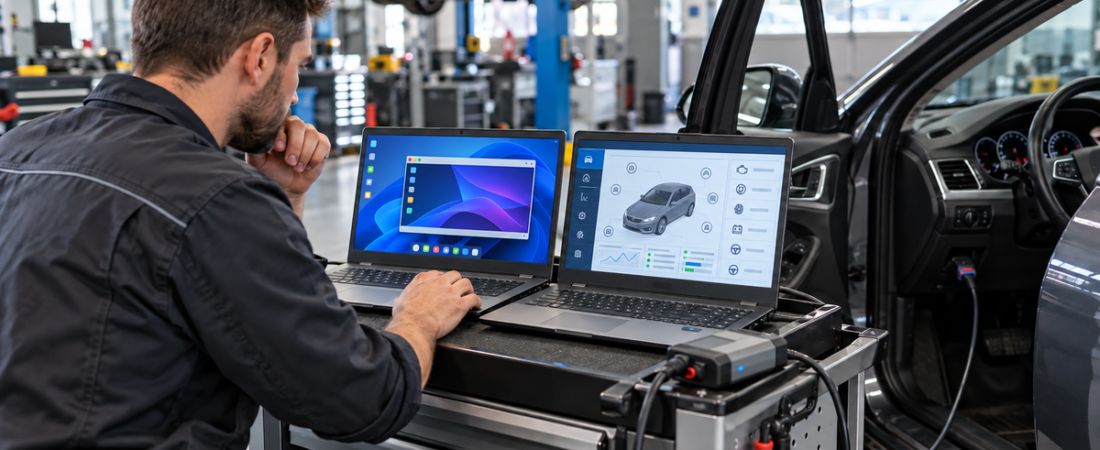
Automotive diagnostic software can be installed directly on a Windows laptop or run inside a virtual machine. Both approaches can work well, but they solve different problems. A native installation gives the application direct access to Windows, network adapters, USB drivers, and the vehicle interface. A virtual machine places the diagnostic environment inside an isolated guest operating system managed by VMware, VirtualBox, or Hyper-V.
The best choice depends less on convenience than on the software’s age, the interface it uses, and the work you plan to perform. Reading codes in an older preconfigured environment is different from programming an ECU over DoIP. This guide compares virtual machine vs native installation for diagnostic software and provides a practical workshop decision process.
How the Two Installation Methods Differ
With a native installation, the diagnostic application, database, VCI driver, and supporting components all live in the laptop’s main Windows environment. The program communicates directly with physical USB, Ethernet, Wi-Fi, or Bluetooth hardware. This normally produces the shortest and simplest communication path.
A virtual machine runs a second operating system as a guest. The host laptop supplies processor time, memory, storage, networking, and access to selected devices. The hypervisor presents virtual hardware to the guest and can hand a physical USB device from the host to the VM. This extra layer improves isolation, but it also creates another place where configuration or communication can fail.
Where a Virtual Machine Is Strongest
A VM is especially useful for older applications that expect a specific Windows version, database, browser component, regional setting, or driver combination. Instead of rebuilding that environment manually, a workshop can preserve a known configuration as a complete set of virtual disk and machine files. Our Hyundai GDS VMware guide shows this model in practice.
- Isolation: conflicting databases, drivers, and background services stay out of the host Windows installation.
- Repeatability: the same tested VM can be deployed on compatible workshop laptops.
- Recovery: snapshots can return a guest to an earlier state after a bad configuration change.
- Legacy compatibility: older software can remain in the operating-system environment it expects.
Oracle’s VirtualBox manual confirms that virtual USB controllers can connect physical USB devices to a guest and that snapshots can preserve VM state. However, a snapshot is not a complete backup. Keep a separate powered-off copy of the VM folder on another drive, and never revert a snapshot while a vehicle programming operation is active.
Where a Virtual Machine Creates Friction
The host and guest must share the laptop’s resources. If a 16 GB laptop gives 8 GB to a VM, the host still needs enough memory for Windows, security tools, and the hypervisor. Large virtual disks also consume significant SSD space. Slow storage, aggressive power saving, or excessive resource allocation can make both systems unresponsive.
Device handling is the bigger workshop concern. A USB VCI usually belongs to either the host or the guest, not both at once. If it remains attached to the host, the diagnostic program inside the VM cannot see it. USB reconnection after sleep or a cable disturbance may also require another manual handoff. Ethernet and DoIP tools add virtual network modes, firewall rules, and adapter selection to the troubleshooting path.
Virtualization also requires supported hardware and firmware settings. Microsoft documents hardware-assisted virtualization, SLAT, VM monitor extensions, and adequate memory for Hyper-V. It also notes that the full Hyper-V feature is available on Windows 10 or 11 Pro and Enterprise, not Home. Check the chosen hypervisor’s requirements before assuming an older workshop laptop can run a VM reliably.
Where Native Installation Is Strongest
Native installation is usually the better default for current diagnostic software with supported Windows 11 drivers. It offers direct access to the VCI, lower resource overhead, simpler networking, and fewer layers to inspect when communication fails. This matters with J2534 pass-thru devices, DoIP adapters, and vendor applications that expect to manage their own drivers and services.
It is also the more conservative choice for coding, flashing, calibration, or other operations where a communication interruption can leave a module incomplete. Native installation does not guarantee success, but it removes the hypervisor, USB passthrough, and virtual network from the data path. Stable vehicle voltage, laptop AC power, disabled sleep, and a verified interface remain essential.
The tradeoff is that native applications share one Windows environment. Two suites may require incompatible Java, SQL, driver, or runtime versions. An update can affect several tools, and restoring one application without disturbing the others may be difficult. Start from the documented baseline in our Windows 11 diagnostic laptop setup guide and install one tested package at a time.
Comparison for Workshop Use
| Decision Factor | Virtual Machine | Native Installation |
|---|---|---|
| Legacy operating system | Usually easier to preserve | May be unsupported or difficult |
| Driver isolation | Strong separation between suites | Drivers share the host system |
| USB and network path | Requires passthrough or virtual networking | Direct hardware access |
| Performance | Shares host resources | Uses hardware directly |
| Rollback | Convenient snapshots plus backups | Needs system images or reinstall plans |
| Programming work | Use only when explicitly supported and proven | Generally preferred |
A Simple Decision Process
- Follow the software publisher or package instructions. If the application is supplied as a tested VM, use that environment. If the VCI vendor requires a native driver stack, install natively.
- Identify the connection type. Basic USB scanning is often manageable in a VM. DoIP, complex network discovery, and time-sensitive programming favor native installation unless the entire virtual workflow is validated.
- Check host capacity. A VM needs spare CPU, RAM, and SSD capacity after the host’s needs are covered.
- Test before vehicle work. Confirm boot, VCI detection, network discovery, a full vehicle scan, data logging, and clean shutdown.
- Create a recovery path. Back up installers, drivers, licenses, settings, reports, and either the native system image or powered-off VM files.
Some products support both approaches. The Volvo VIDA installation guide, for example, covers a native setup and a VirtualBox alternative. Test each option with the exact laptop, VCI, and vehicles used in your shop rather than assuming that another technician’s configuration will behave identically.
Best Overall Choice: Use a Controlled Hybrid Setup
For most independent workshops, the strongest answer is not one method for every product. Keep modern, actively supported, hardware-sensitive tools installed natively on a clean diagnostic laptop. Use separate VMs for legacy suites or prebuilt environments that depend on older components. Do not run unnecessary applications at the same time, and document which VCI, USB port, network mode, and software version belong to each setup.
Whichever method you choose, reliability comes from validation and recovery planning. A VM is valuable for isolation, not a substitute for dependable hardware or backups. A native install is efficient, not immune to driver conflicts. Match the installation method to the application and task, test it away from critical programming work, and preserve a known-good copy before making changes.
 English
 German
 Spanish
 Italian
 French
 Hebrew
 Dutch
 Finnish
 Norwegian
 Swedish
 Polish