
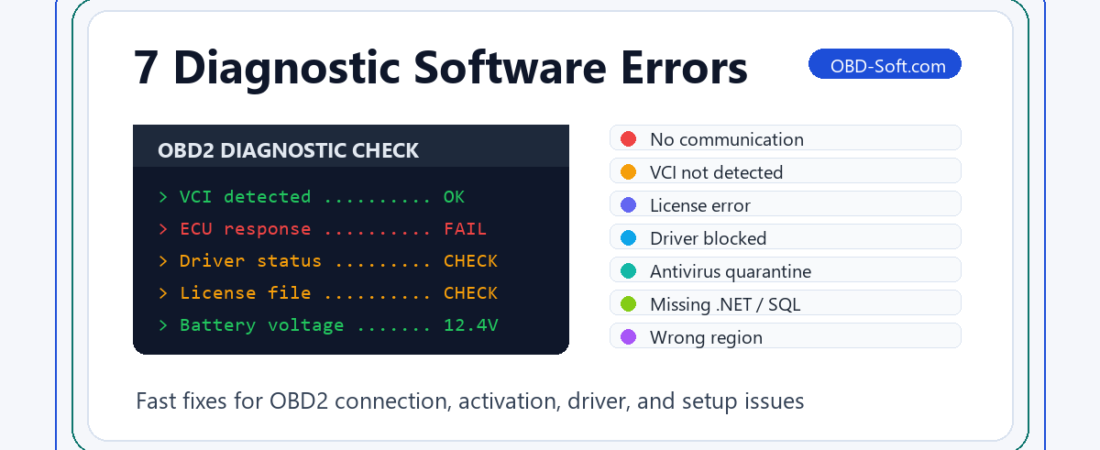
Diagnostic software errors usually appear when you are ready to scan a vehicle: the interface is plugged in, the customer is waiting, and the program suddenly says it cannot connect, cannot activate, or cannot find the device. In most cases, the problem is not the whole software package. It is usually a driver, Windows permission, antivirus, license file, vehicle voltage, or setup option.
This guide covers the seven diagnostic software errors fix steps that solve most problems across Delphi, Autocom, WOW, Mercedes Xentry, BMW ISTA+, Renault CAN Clip, DiagBox, VCDS, OP-COM, and Toyota Techstream. If you are new to scan tools, start with our OBD2 diagnostic software beginner’s guide. For a multi-brand example, keep the Guida all'installazione di Delphi 2021 open as a reference.
1. “No Communication with Vehicle”
Root cause: The software opens, but it cannot talk to the ECU. Common reasons include ignition off, low battery voltage, loose OBD cable, wrong vehicle selection, or a driver that is not loaded correctly.
- Turn ignition on, with the engine off unless the software says otherwise.
- Check the OBD2 plug, USB cable, and adapter connections.
- Select the exact make, model, year, engine, and control module.
- Confirm the interface appears in Windows Device Manager without a warning icon.
- Use a battery maintainer if vehicle voltage is low.
Prevention: Connect the interface to the vehicle first, then the laptop, then launch the software as administrator.
2. “VCI Not Detected” or USB Interface Missing
Root cause: Windows sees the hardware incorrectly, or the diagnostic program cannot see it at all. This often happens after using a different USB port, installing a generic driver, or skipping the supplied VCI driver.
- Plug the interface directly into the laptop, not a USB hub.
- Install the driver package supplied with that exact tool.
- Remove the failed device in Device Manager, reboot, and reconnect it.
- For COM-port tools, set the COM number expected by the software.
- For Bluetooth interfaces, pair again and confirm the assigned serial ports.
Prevention: Use the same USB port each time. Windows can treat the same scanner as a new device when it moves ports.
3. License Expired, Activation Failed, or Key Not Accepted
Root cause: The hardware ID was copied incorrectly, the activation tool was not run as administrator, the PC date was wrong, Secure Boot blocked a loader, or an online update changed activation files.
- Copy hardware ID and application ID directly instead of retyping them.
- Run the activation tool and diagnostic software as administrator.
- Follow the product’s date instructions, then return Windows to the correct date if required.
- Keep license files in the required folder and mark them read-only when instructed.
- Avoid online updates unless the supplier confirms they are supported.
Prevention: Finish activation in the exact order shown in the install guide. Xentry users should also confirm Secure Boot is disabled when the guide requires it.
4. Windows Blocks the Driver or Says It Is Not Signed
Root cause: Older diagnostic interfaces may use legacy USB, J2534, or PassThru drivers. Windows can block them if required updates, administrator rights, or security settings are missing.
- Right-click the installer and choose Esegui come amministratore.
- Use the driver included with the software package, not a random driver from another scanner.
- Disable Secure Boot only when the product instructions specifically require it.
- On Windows 7 SP1, install required updates such as KB3033929 if driver signing errors appear.
- Reboot after driver installation before opening the diagnostic program.
Prevention: Match the tool to the Windows version it was designed for. Windows 10 64-bit is often the easiest base for modern diagnostic packages.
5. Antivirus Quarantines Patch, Keygen, or Program Files
Root cause: Windows Security or third-party antivirus software removed activation-related files after installation. Delphi, Autocom, WOW, and similar tools are especially sensitive to this because missing files can stop the program from opening.
- Check Windows Security history or antivirus quarantine.
- Temporarily disable real-time protection during installation only when you trust the source.
- Add the installed software folder to exclusions, not the whole drive.
- Restore quarantined files or reinstall if required files were deleted.
- Turn protection back on after exclusions are configured.
Prevention: Create the folder exclusion before the first launch after activation. This is a common fix when software works once, then stops opening later.
6. .NET, SQL Server, Database, or Missing Windows Update Errors
Root cause: Many scan tools rely on Microsoft .NET Framework, Visual C++ runtimes, SQL Server components, Java, or older Windows update packages. If prerequisites are missing, the main installer or database import can fail.
- Install all prerequisite folders included in the download before the main setup.
- Run Windows Update and reboot until required updates are complete.
- On Windows 7 SP1, check for KB3033929, KB2992611, or KB2921916 when requested.
- If an update says “not applicable,” confirm 32-bit vs 64-bit and Service Pack 1 status.
- Use a simple install path such as
C:\DiagTools\oppureD:\Software\.
Prevention: Reboot after prerequisites. Many setup failures happen because Windows is waiting to finish a previous update.
7. Wrong Language, Region, or Vehicle Database
Root cause: The wrong region was selected, language files were not copied, database folders are missing, or an update changed the installed configuration. Some tools also require plugin or patch files in an exact folder.
- Check language and region settings inside the program first.
- Review the installation guide and confirm the correct options were selected.
- Copy database, plugin, or patch files to the exact folder listed in the instructions.
- Do not run automatic updates until the correct database is confirmed.
- If the wrong region was selected during setup, a clean reinstall is often faster.
Prevention: Take screenshots of installer options before clicking Next. If the final software looks wrong, you can quickly see which setting changed.
Quick Diagnostic Software Error Checklist
- Run the software as administrator.
- Verify the interface in Device Manager.
- Keep ignition on and battery voltage stable.
- Install prerequisites before the main program.
- Follow activation steps in order.
- Add only trusted software folders to antivirus exclusions.
- Use the exact Windows version, region, and driver package recommended by the guide.
Considerazioni finali
Most diagnostic software crash fixes and OBD software not connecting problems become simple once you separate vehicle communication, USB detection, activation, Windows security, prerequisites, and region settings. Work through the checklist in that order before reinstalling everything.
If you work with OEM tools, read our ISTA+ vs Xentry comparison. For BMW setup, see the BMW ISTA+ v4.32 installation guide. For Mercedes, the Mercedes Xentry installation tutorial covers preparation and activation in more detail.
 English
  German
  Spanish
  Italian
  French
  Hebrew
  Dutch
Dutch  Finnish
  Norwegian
  Swedish
  Polish